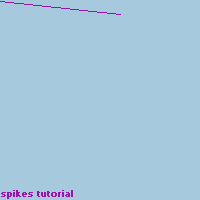
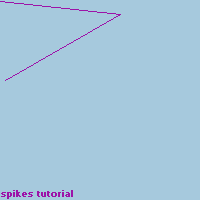
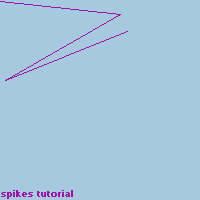
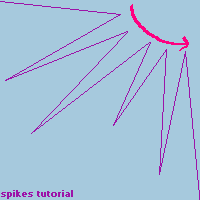
Spikes in MS PaintThe images should be explanitory enough, but you can read along too :) Start with a blank Microsoft Paint canvas. Change the size to 200x200, or any size you want. Fill it any color you want, or just leave it white. Choose another color for your spikes. If you changed the background you'll want to choose colors that look good together. Click on the line tool in the tool bar. If you have no tool bar just go to View > Tool Box.
Using the line tool, draw a line from the top left corner at an angle. Don't drag it all the way across, stop at about 2/3 of the way.
Without moving your cursor, draw another angled line going the other way.
And another line. You'll start to see the shape of a spike.
Continue until you end your last spike in the bottom right corner. Vary the length and width of the spikes if you wish. Make sure the inside of your spiky shape makes a curve.
Fill in your spikes with the same color. Or you could even use a different color if you want.
Zoom in with the magnifying glass on the tool bar and use the bucket fill tool, also on the tool bar, to fill in any pixels on the spiky ends that didn't get filled. Zoom out and your done! Use it for a layout, a background, a desktop.....whatever :) |
|||